

Brand and Campaign Reporting
Replug always comes up with new and creative ways to optimize customer experiences. We have recently added a new feature which is Reporting, through which you will get the report of your brands and campaigns, and you can measure the performance of the campaign and clicks which are generated daily, weekly, and monthly. So, here we have some guidelines which would help you understand how you can add reports in your Replug account.
Brand and Campaign Reporting
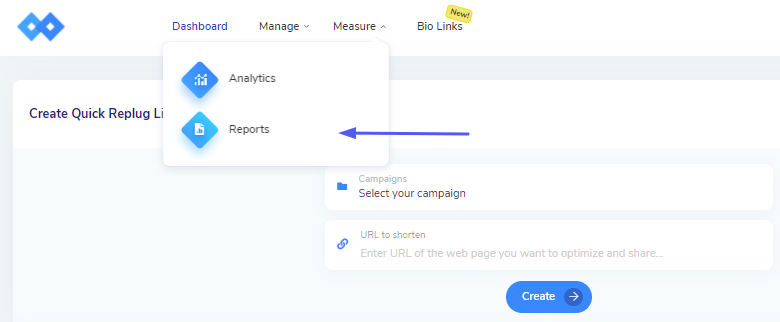
Starting off, from the Replug dashboard, click on Reports from the drop-down list on Measure.
After that, the pop-up appears on your screen, in which you need to:
Add Report name
Select Brand
Select Campaign
Select how often would you like to receive the emails.
Add email, where the report which measures the total number of unique clicks and the performance of the campaigns, will be sent.
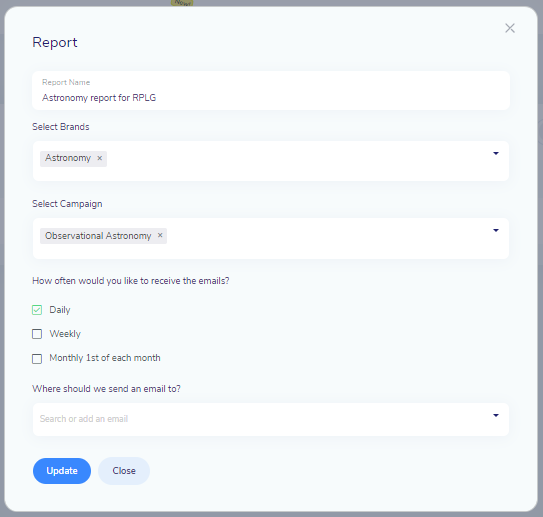
Click on add and your Report will be added to Replug.
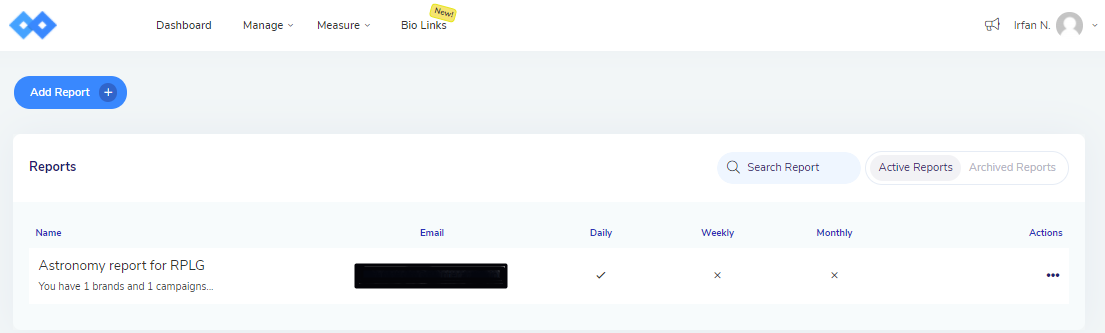
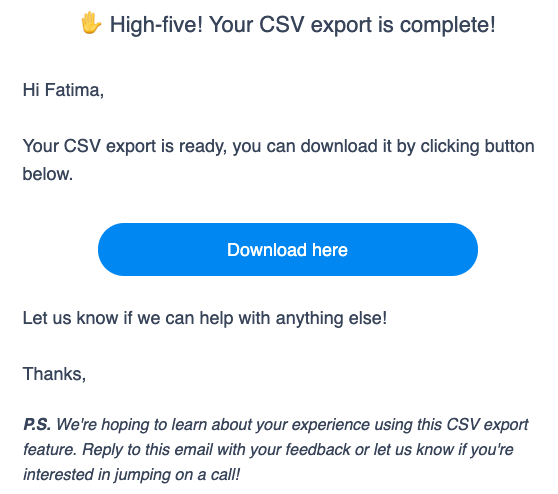
Your report will be sent to your added email on a daily, weekly, or monthly basis. Your email would look something like this, which you can download by clicking on the download button.
Actions
You can also perform a certain action with your uploaded Reports.
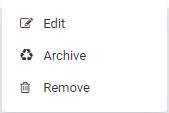
Edit | You can change anything in the Report whenever you want. |
|---|---|
Archive | You can place your report as an archive and restore that archive Report if you want. |
Remove | If you want to remove your report or create a new one, then you can do it anytime. |
Viewing Archived Reports
If you have archived your Reports and want to view them. Click on the button labeled 'Show Archived Reports'.

If you have any questions related to Replug, you can email us directly at support@replug.io or use the live chat on this page (also available on the dashboard at any time).
Was this article helpful?