

Setup Guide: Replug’s White-Label Feature
Replug’s White-Label solution allows users to customize Replug even more. Users can now add their own branding to the URLs, emails, reports, logos & favicons, etc.
By rebranding, the users can make the product or service seem like they created it themselves. Users do not need to invest their time and resources to develop or produce it. White-Label becomes the first choice when companies want to expand their offerings and reach new customers without the expense of creating new products from scratch.
White-Label Settings
Step1:
Once you are logged in to Replug, navigate to Replug account configuration settings. Click your profile name or image at the top right corner of the dashboard to display the drop-down settings menu.
Step 2:
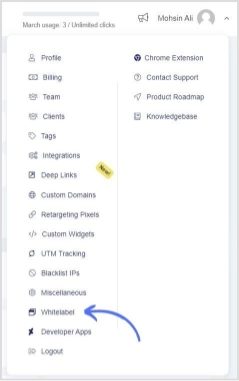
Click the “ White-Label” option to rebrand Replug dashboard.
Complete the White-Label Setup by adding details in the required mandatory fields.
General Settings
Domain Settings
Email Settings
General Settings
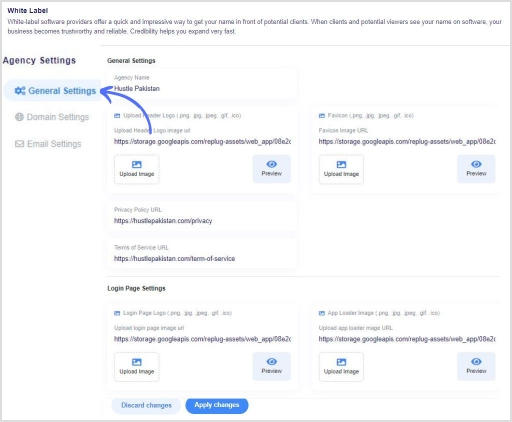
Step 1:
In this section, you need to add the following details:
Agency Name
Favicon Image
Privacy Policy URL
Terms of Service URL
Login Page Image
App loader image
Step 2:
When you are done adding your Agency name, branded logos, favicons, etc., then click on " Apply changes" to confirm your general settings.
Domain Settings
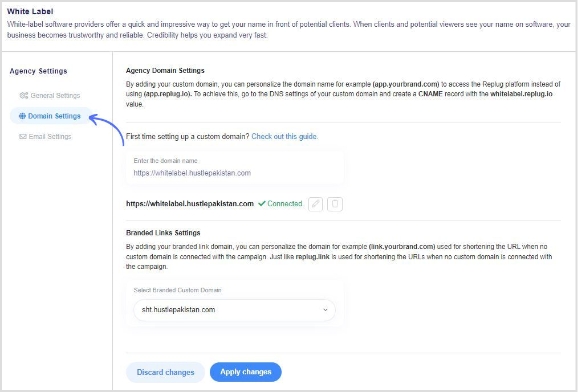
In this section, you can personalize the domain name. For example, Rebrand app.replug.io to a customized and branded domain name such as app.yourbrand.com
Step 1: Enter the agency domain name on which you want to set up your White-Label dashboard.
Go to the DNS settings of your custom domain.
Create a CNAME record with the "Whitelabel.replug.io".
Step 2: Select your branded custom domain from the dropdown.
Step 2: Click Apply Changes to Confirm the action or discard changes if you want to remove your custom Agency domain.
Email Settings
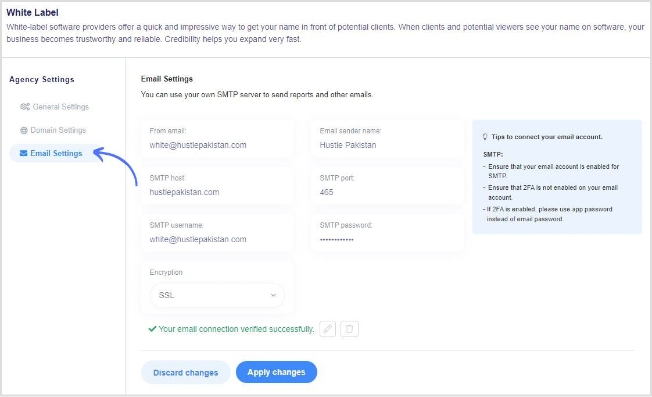
You need to fill in the given fields to set up your White-Label email settings. The given field settings are as under:
From Email
Sender’s Name
SMTP Host
SMTP Host
SMTP Username
SMTP Password
Encryption
Switching to the White-Label Dashboard
Once you are done with the prerequisite settings. Now you only have to switch to the White-Label version.
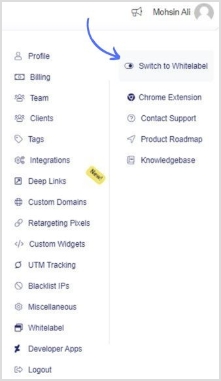
To switch to the White-Label version, just click your profile name or icon at the top right corner.
Here’s a preview of it.
Was this article helpful?